Not receiving push notifications? Here's how to fix it
Not receiving push notifications? Here's how to fix it
You are no longer receiving push notifications for new emails in the eclipso Mail Europe app? In this article, we'll show you the most common causes and how to fix the problem on Android and iOS. Push notifications are available for all plans and require an active internet connection.
Common causes of missing push notifications
- Notifications disabled: Permissions have not been granted in device settings.
- Battery optimization: The system has put the app in power saving mode.
- Background data blocked: The app is not allowed to receive data in the background.
- Device change: After a device change, the old app access is still active.
- Multiple devices: With multiple logged-in devices, conflicts can occur.
Solutions for Android devices
Step 1: Check notifications- Open the Settings on your Android device
- Go to Apps or Applications
- Find eclipso Mail Europe and tap on it
- Select Notifications
- Make sure notifications are enabled
- Check that all notification categories are allowed
- Go to Settings > Apps > eclipso Mail Europe
- Select Battery
- Tap on Battery usage or Battery optimization
- Select Don't optimize or Unrestricted
- Confirm the change
- Open Settings > Apps > eclipso Mail Europe
- Select Data usage or Mobile data
- Enable Background data
- Enable Unrestricted data usage (if available)
- Go to Settings > Apps > eclipso Mail Europe
- Look for Auto-start or Autostart manager
- Make sure the eclipso app is allowed to start automatically
Solutions for iOS devices (iPhone/iPad)
Step 1: Check notifications- Open Settings on your iOS device
- Go to Notifications
- Find eclipso Mail Europe in the list
- Enable Allow Notifications
- Select desired display options: Banners, Sounds, Notification Center
- Open Settings > General
- Select Background App Refresh
- Make sure Background App Refresh is enabled in general
- Scroll to eclipso Mail Europe and enable the option
- Open Settings > Focus
- Check active modes such as Do Not Disturb, Work, or Sleep
- Add eclipso Mail Europe to the allowed apps
- Or temporarily disable Focus mode for testing
- Go to Settings > Cellular
- Scroll down to the app list
- Make sure eclipso Mail Europe is enabled
Delete app access when changing devices or using multiple devices
Why can this help?- Device change: After switching to a new smartphone, the old access is often still active, which can lead to conflicts.
- Multiple devices: If you use the app on multiple devices, push notifications can only be sent to one device.
- Connection problems: An outdated app access can block push notifications.
- Log in to the eclipso Mail Europe web interface
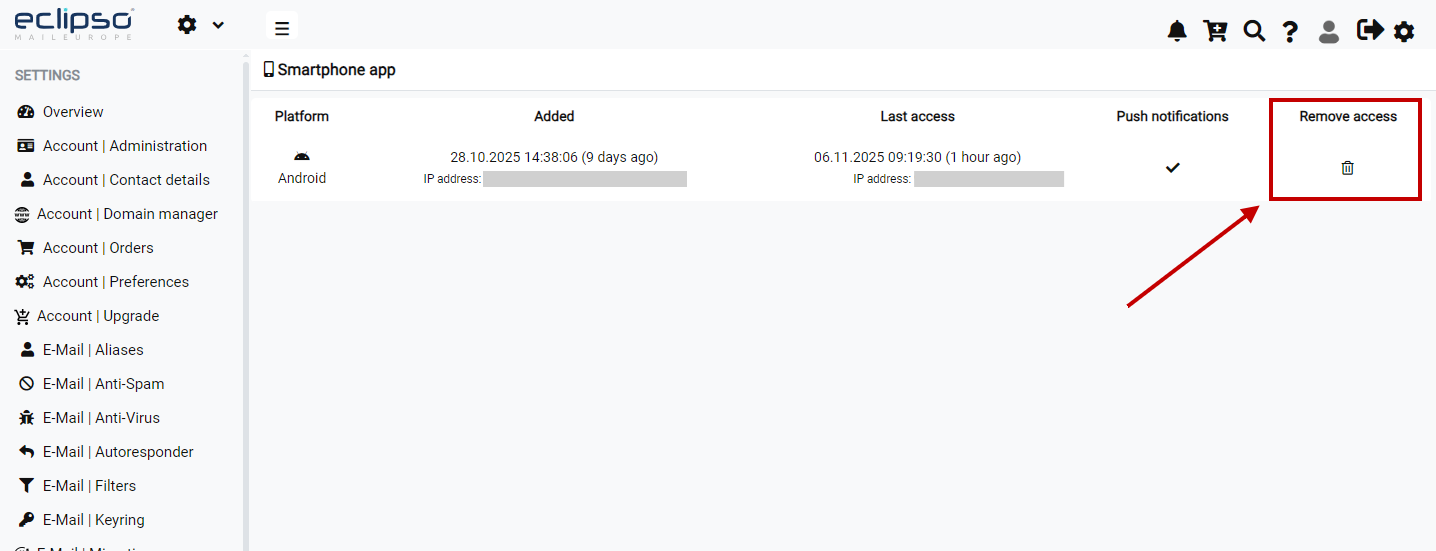
- Go to Settings > Smartphone App
- In the overview, you will see all connected devices with platform, date, and IP address
- Click the trash can icon next to the old or inactive device
- Confirm the security prompt
- Log in again in the app on your current device
General tips
- Check app version: Make sure you have the latest version of the eclipso Mail Europe app installed.
- Re-login: Log out and log back into the app to re-establish the connection.
- Restart device: Restarting your smartphone can fix temporary issues.
- Check internet connection: Push notifications only work with an active Wi-Fi or mobile data connection.
- VPN software: Some VPN or firewall apps can block push notifications.
Still no notifications?
If you have completed all steps and still do not receive push notifications, please contact our support. Have the following information ready:
- Your device model and operating system version
- Version of the eclipso Mail Europe app
- When the problem started
- Solution attempts already made